PROMPT GUIDES · 2026-09-28
Why did my image prompt generator return text instead of an image?
Because an image prompt generator can be a text-preparation tool. PromptSprite Image mode writes a detailed instruction for a separate image model; it does not call a rendering model itself. Copy the generated prompt into the image tool you intend to use, then review that tool's output against the subject, composition, style, ratio, and exclusions you requested.
Turn my visual idea into one image-generation prompt and a separate negative prompt. Preserve every confirmed subject and setting detail. Specify composition, camera distance, lighting, color palette, materials, textures, mood, visual style, and aspect ratio. Mark unknown facts as choices or ask one focused question; do not invent brand marks, readable text, people, or objects I did not request.
Try it in the prompt generator →
What Image mode returned in our browser test
On September 28, 2026, we selected Image prompts and entered an editorial photograph of a handmade ceramic mug on a linen tablecloth beside a sunny window. We selected Editorial photography, a 1:1 square ratio, soft morning window light, a close-up with shallow depth of field, and an avoid list for logos, watermarks, and distorted handles.
The result appeared as text in the page's result textarea. It instructed the next tool to describe subject, setting, composition, lighting, colors, textures, and mood; preserved the selected style and ratio; and included a separate negative prompt. The page created no canvas and no generated blob or data image in this run.
This is a prompt-construction test. PromptSprite did not upload an image, call an image-generation model, or produce a raster file.
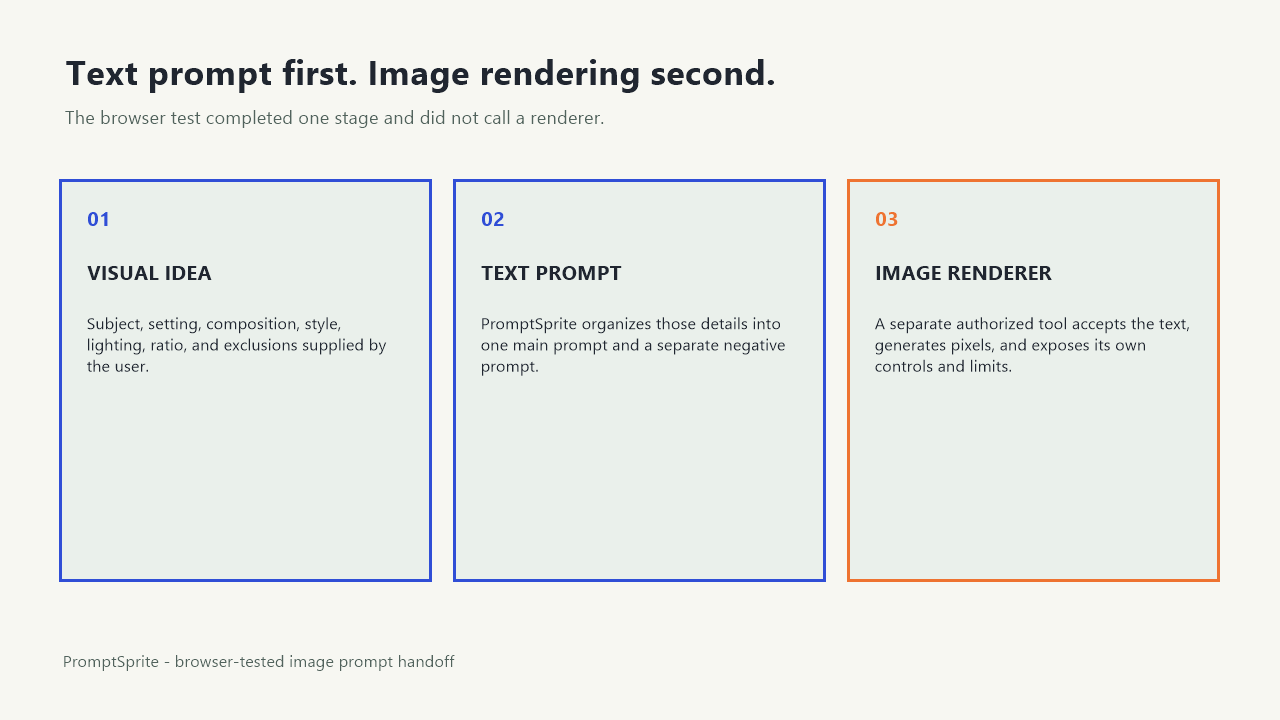
Prompt construction and image rendering are separate stages
| Stage | Input | Output | What to verify |
|---|---|---|---|
| Prompt construction | Your visual idea and settings | Text instructions | Subject, composition, style, ratio, lighting, and exclusions are present |
| Image rendering | The copied text prompt | An image file or preview | The visible result matches the instructions and contains no unwanted artifacts |
A text result is therefore expected when the first tool only prepares instructions. The second stage needs a renderer that accepts text prompts and produces images. Its controls, file formats, limits, and privacy terms belong to that separate tool.
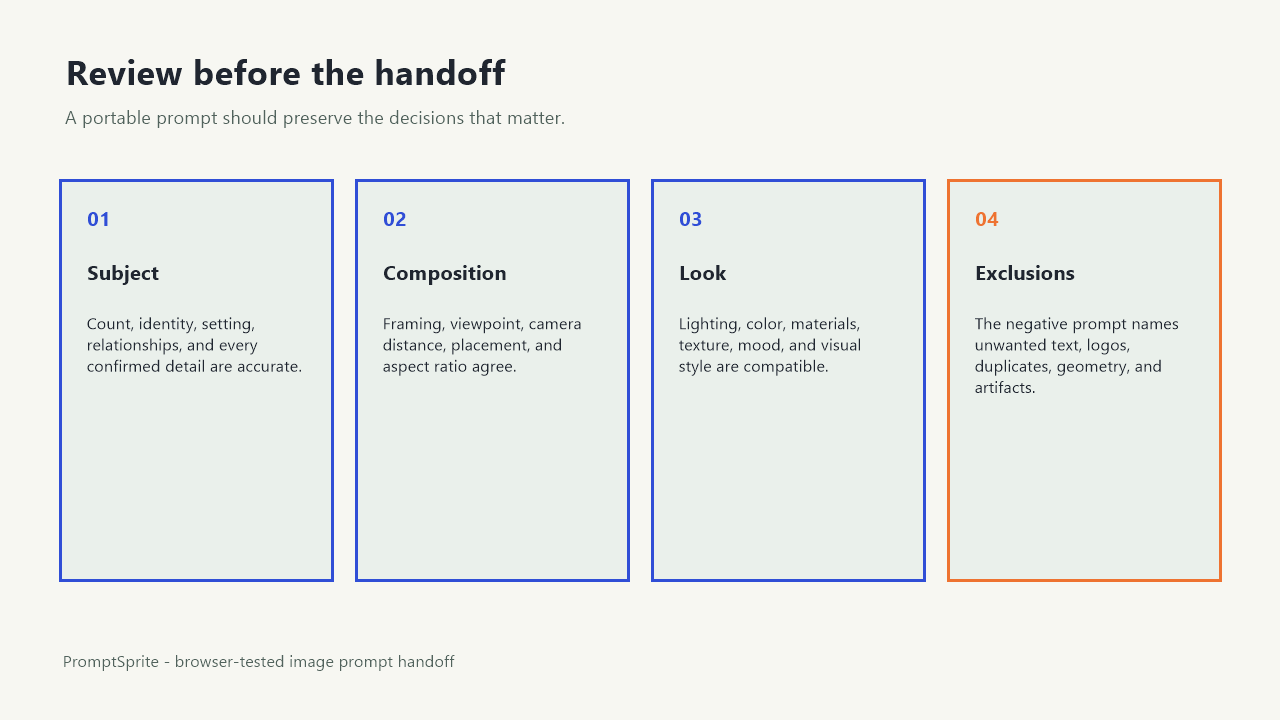
Check the text before sending it to a renderer
- Subject: identify the main object or person and preserve supplied details.
- Setting: name the environment and the relationship between objects.
- Composition: state framing, camera distance, viewpoint, and placement.
- Light and color: describe direction, softness, time of day, palette, and contrast.
- Materials and texture: include surfaces that matter, such as glazed ceramic and woven linen.
- Style: use a plain-language visual direction such as editorial photography.
- Aspect ratio: carry the chosen shape into the rendering tool when it supports that control.
- Negative prompt: list unwanted elements without contradicting the main subject.
Do not assume that a long prompt is a complete prompt. Remove duplicated instructions, resolve conflicts, and keep unknown brand details or readable text out unless you can supply them accurately.
A clean transfer for the ceramic mug example
Main prompt
Editorial product photograph of one handmade glazed ceramic mug on a natural linen tablecloth beside a sunny window. Close-up composition at table height, soft morning side light, shallow depth of field, warm neutral palette, visible ceramic glaze and woven linen texture, calm domestic mood, square 1:1 frame.
Negative prompt
No logos, watermarks, readable text, extra mugs, duplicated handles, distorted handle geometry, plastic texture, harsh flash, or cluttered background.
This example turns the tested settings into one portable text instruction. It is author-written; it is not an image-model response. A renderer may use a separate aspect-ratio control, so set that control as well when available rather than relying only on the words square 1:1 frame
.
If you still expected an image, check the handoff
- Confirm whether the current page promises a prompt, an image, or both.
- Look for a generated text field and a copy control. That indicates a preparation step.
- Choose the separate rendering tool you are authorized to use.
- Copy the main and negative prompts into the fields that tool provides.
- Set ratio or size in the renderer's own controls when possible.
- Generate there, then inspect subject count, hands or handles, text, logos, geometry, and cropping.
If a rendering tool returns only text, check that you used its image-generation workflow rather than a chat or prompt-improvement workflow. If it refuses the request, read the tool's actual error instead of repeatedly changing unrelated words.
What this test proves and what remains unknown
We verified one public PromptSprite Image-mode run in Chrome. It returned text, preserved the selected visual settings, and did not create an image canvas or generated blob/data image. The transfer prompt and review steps on this page are author-written examples.
We did not send the prompt to a renderer, compare image quality, or test every external tool. Rendering behavior depends on the tool, model, settings, and input. Keep claims about a finished image separate from claims about the prompt that requested it.
You can inspect the exact browser-test record. Save the text prompt beside the final image so you can compare the request with the visible result.
Questions and answers
Is text output an error in an image prompt generator?
Not when the tool is designed to prepare a prompt for another image model. Check the page scope and output label.
Where do I paste the generated image prompt?
Paste it into the text-prompt field of an image-rendering tool you are authorized to use, then set any separate ratio or size controls.
Does a negative prompt guarantee clean image geometry?
No. It states exclusions for the renderer, but you still need to inspect the generated image for artifacts and unwanted elements.
Original PromptSprite browser test and author-written handoff example. No image renderer was called, and no image-quality claim is made.
Watch the walkthrough
Original diagram walkthrough with synthetic English narration. The ceramic mug prompt is an author-written example, not a rendered image.