PROMPT GUIDES · 2026-09-30
How do I compare a generated prompt before and after editing it?
Save the generated prompt as the before version, make one intentional edit, then compare the two texts by section. Confirm the new instruction appears exactly once, every unrelated section is unchanged, and no constraint was weakened or contradicted. This verifies the edit itself; it does not prove that a downstream model will produce a better answer.
Compare the BEFORE and AFTER prompts section by section. List every added, removed, and changed instruction. For each change, explain its likely effect using only the text provided. Flag contradictions, duplicated requirements, and any lost context. Do not judge downstream output quality because no output is supplied. End with a concise change log and an unresolved-questions list.
Try it in the prompt generator →
What our public browser test verified
On September 30, 2026, we generated a writing prompt for a concise launch email aimed at freelance designers. The settings requested a professional tone, bullet points, and concise length. PromptSprite placed the result in an editable textarea.
We inserted one material line before the OUTPUT section: Mention that customer data is encrypted on-device.
The exact before and after strings were saved. The original idea, settings, text before the insertion point, and text after it all remained unchanged. The status changed to Your edits are ready to copy.
This test checked text editing in the browser. Neither version was sent to another model, so it does not show whether the added claim is true or whether the final email would improve.
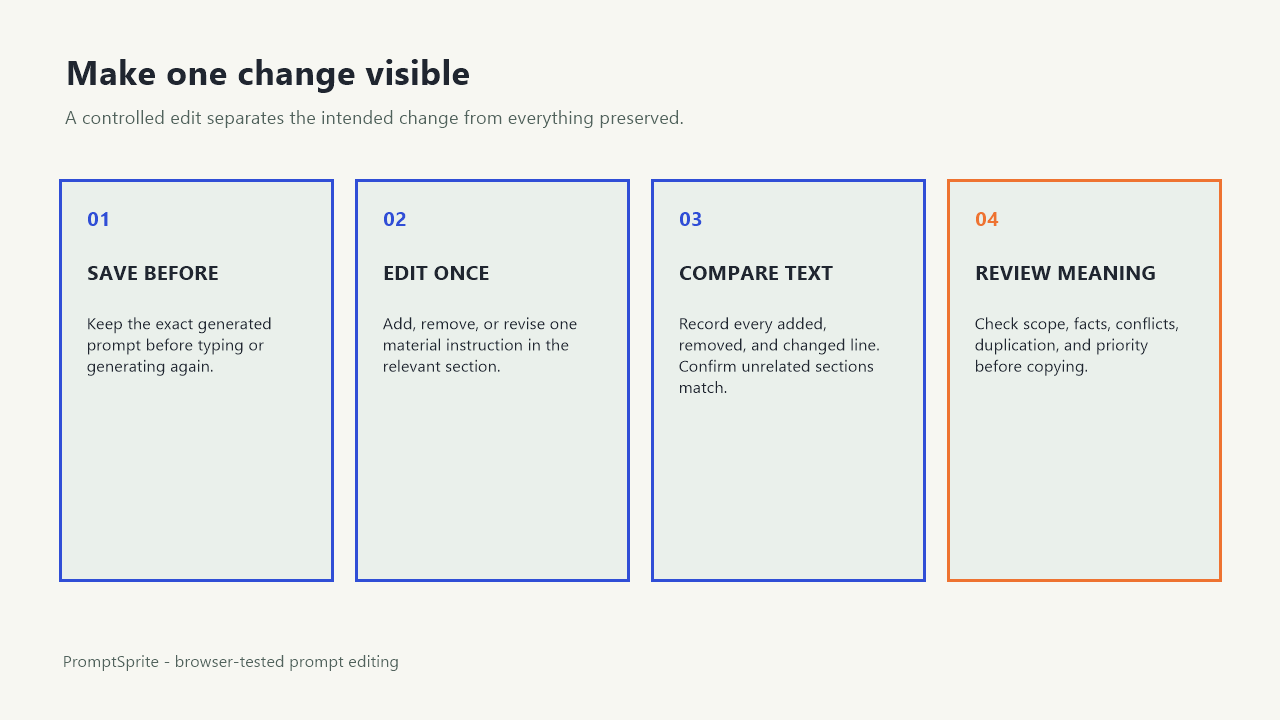
Make one controlled edit at a time
- Copy or save the initial generated prompt before typing.
- Name the intended change in one sentence.
- Edit one section that directly controls that change.
- Save the after version before making another edit.
- Compare exact text, then review meaning.
One controlled edit gives the comparison a clear cause. Several simultaneous changes make it hard to tell which instruction produced a difference later. If you must change several items, create a new saved version after each material step.
Record an exact before-and-after change log
| Check | Before | After | Result in our test |
|---|---|---|---|
| New instruction | Absent | One encryption statement added | Added exactly once |
| Task and audience | Launch email; freelance designers | Same text | Unchanged |
| Tone, format, length | Professional; bullets; concise | Same settings and text | Unchanged |
| Output section | Ready-to-use writing | Same text | Unchanged |
Keep the full strings with the change log. A summary alone can hide punctuation, qualifiers, or removed constraints that change the meaning.
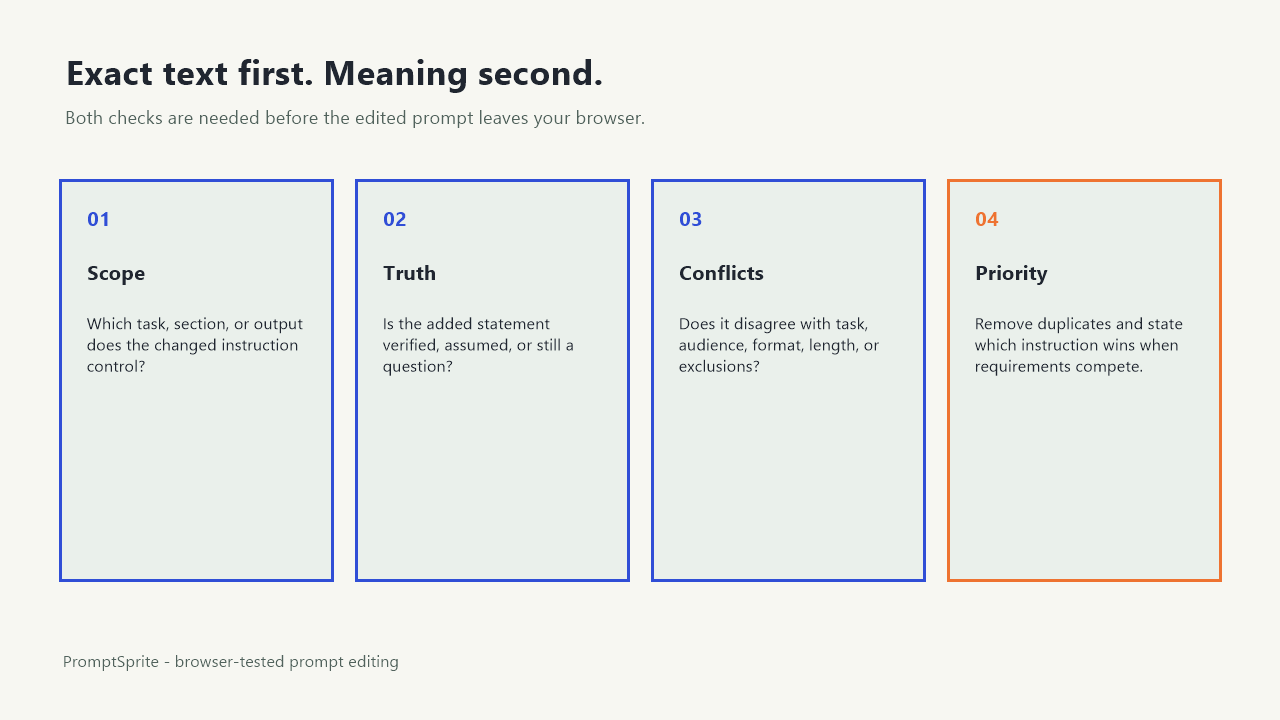
Review meaning after the exact diff
- Scope: does the new line apply to the whole task or one part?
- Truth status: is the added statement a verified fact, an assumption, or a request to mention a claim?
- Conflicts: does it contradict the task, audience, format, length, or avoidance rules?
- Duplication: is the same requirement already expressed elsewhere?
- Priority: if two instructions disagree, does the prompt say which one wins?
In the test example, encryption is a product claim. Before using the prompt, the author should verify that it is accurate and define what on-device
covers. A clean text diff cannot validate the underlying fact.
Choose editing or regeneration deliberately
| Use direct editing when | Generate again when |
|---|---|
| The current structure is useful and one instruction needs correction | The task, audience, or purpose has materially changed |
| You need an auditable, narrow text change | Several settings must change together |
| You want to preserve working wording around the edit | The existing prompt contains conflicts that are easier to rebuild |
Generating again replaces the current result, so save the before version first if you need a comparison. Direct editing preserves control, but the edited text becomes your responsibility to review.
What this comparison proves and what remains unknown
We verified one public PromptSprite run in Chrome: the result field was editable, one exact instruction could be inserted, the surrounding prompt remained identical, and the original form values remained unchanged.
We did not test copy fidelity in every browser, long editing sessions, saved history, or a downstream model response. PromptSprite does not store version history. Save versions in your own document when the comparison matters.
You can inspect the exact browser-test record, including both complete strings and the boolean equality checks.
Questions and answers
Does a text diff tell me which prompt is better?
No. It tells you what changed. To compare outcomes, run both prompts under the same downstream conditions and evaluate the resulting answers separately.
Should I edit the generated prompt or change the form settings?
Use direct editing for a narrow correction. Change the form settings and generate again when the task, audience, purpose, format, or length needs a broader rebuild.
Does PromptSprite keep previous prompt versions?
No. Save the before text in your own document before editing or generating again.
Original PromptSprite public browser test and author-written comparison method. The test verifies text editing only, not product claims or downstream answer quality.
Watch the walkthrough
Original before-and-after workflow with synthetic English narration. No downstream response quality was tested.